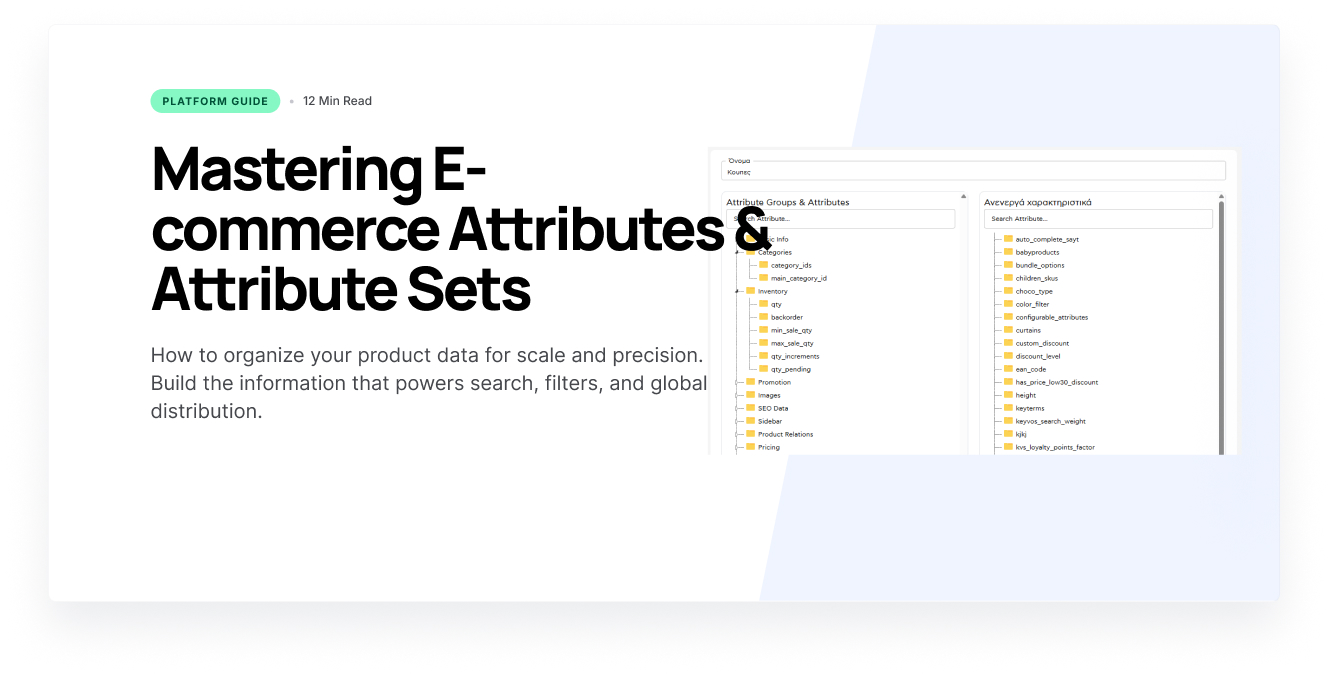
Attributes & Attribute Sets: The Complete Guide for Ecommerce Managers
What Is an Attribute?
An attribute is a characteristic property of a product — something that describes it. Examples: Color, Size, Material, Voltage.
Every attribute has three aspects:
- Name — e.g. "Color"
- Value type — dropdown list / number / text / boolean
- Roles — displayed on product page; used as filter; included in export
What Is an Attribute Set?
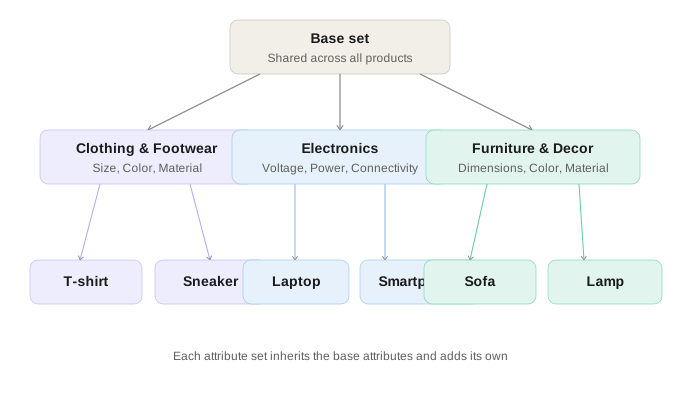
An attribute set is a bundle of attributes that belong to a product category. Instead of defining the same attributes over and over for each product, you group them and apply them in bulk.
How to Organize Attribute Sets
1. Map your categories — For each leaf category ask: do these products have common properties that differentiate them from other categories? If yes, you need a separate set.
2. Build the Base Set first — It includes attributes present in all products: Brand, Country of Origin, Package Weight, EAN. Every other set inherits these automatically.
3. Don't over-fragment — If "Pants" and "Tops" share the same attributes, a single Clothing set is enough. Create a new set only when there are 2-3+ unique attributes.
4. Naming — Use names the whole team understands. color instead of clr. One language everywhere.
Which Attributes Should Be Filters?
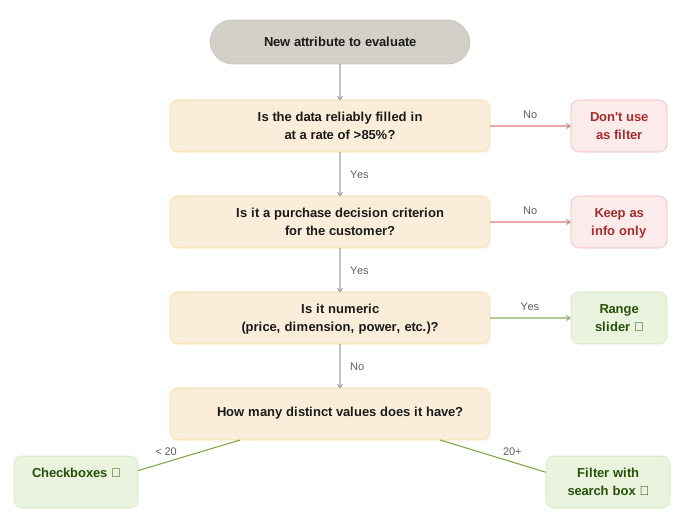
This is the most critical decision. Use the flowchart below for every attribute you're considering:
Rules by Case
Yes — Range slider: Numeric values (price, dimensions, power) with good data.
Yes — Checkboxes: List of <20 values, important buying criterion, >85% data completeness.
Yes — Search box: List of 20+ values (e.g. Brand). Don't show 50 checkboxes.
No — Bad data: Below 85% completeness. The user sees 0 results.
No — Not a criterion: The customer doesn't use it to choose. Keep as product info only.
What to Make a Filter vs. What NOT
Classic filters: Color, Size, Material, Price (range slider), Brand, Technical specs (RAM, Voltage).
Not filters: EAN/SKU codes, Package weight, Import date, Accounting categories, Internal codes.
Filter Display Order
The most-used filters should appear first:
- Price — range slider, always first
- Category / Subcategory — if sidebar navigation exists
- Size / Color — depending on the category nature
- Brand — with search box if there are many
- Technical specs — collapsed by default if there are many
Common Mistakes
Filter with empty data: Results in 0 results for the user. Fix: achieve >85% completeness first, then enable.
Too many filters: Overwhelms users, lowers usage. Fix: keep 4-6 per category.
No range slider for price: Makes filtering difficult. Fix: always use range slider for numeric values.
Set per subcategory: Creates a management nightmare. Fix: fewer, broader sets.
Mixed language in names: Confuses the team. Fix: one language everywhere.
Evaluation tool
Should this attribute become a filter?
Answer the questions for each attribute you are considering enabling.
Tool
The biggest obstacle to filters isn't setting them up — it's the data
At every step of this guide, one rule keeps coming back: filters only work if the data is complete. In practice, filling in hundreds of attributes across thousands of products is the task that eats the most time. Color, material, dimensions, technical specs — every empty field is a filter that doesn't work properly.
Keyvos Enrich automates exactly this process. It analyzes your catalog, identifies missing attributes, and fills them in automatically — no manual data entry, no copy-paste errors. It supports multiple stores from a single environment, so if you manage more than one site, enriched data flows everywhere automatically.
Learn more about Keyvos EnrichPractical tip: If you're unsure about an attribute, start without the filter and enable it after you've secured data and sufficient product volume. A good filter enabled late is much better than a bad filter enabled early.
